Kong AI assistant (KAi)
Kong’s AI assistant, KAi, can detect issues, suggest fixes, and accelerate your workflows all without leaving the Konnect UI. KAi is enabled by default for Konnect Plus and trial accounts. KAi is always disabled by default for Enterprise accounts. Enterprise accounts can enable KAi by contacting their Kong account manager or enabling it in Konnect AI Settings.
KAi can help you do the following:
- Find information on Konnect: Ask questions about Konnect features, settings, and configurations.
- Explore gateway entities: View and explore API gateway entities: Services, Routes, plugins, and more.
- Debug and analyze API traffic: Get real-time insights and troubleshoot performance bottlenecks and issues.
How KAi works
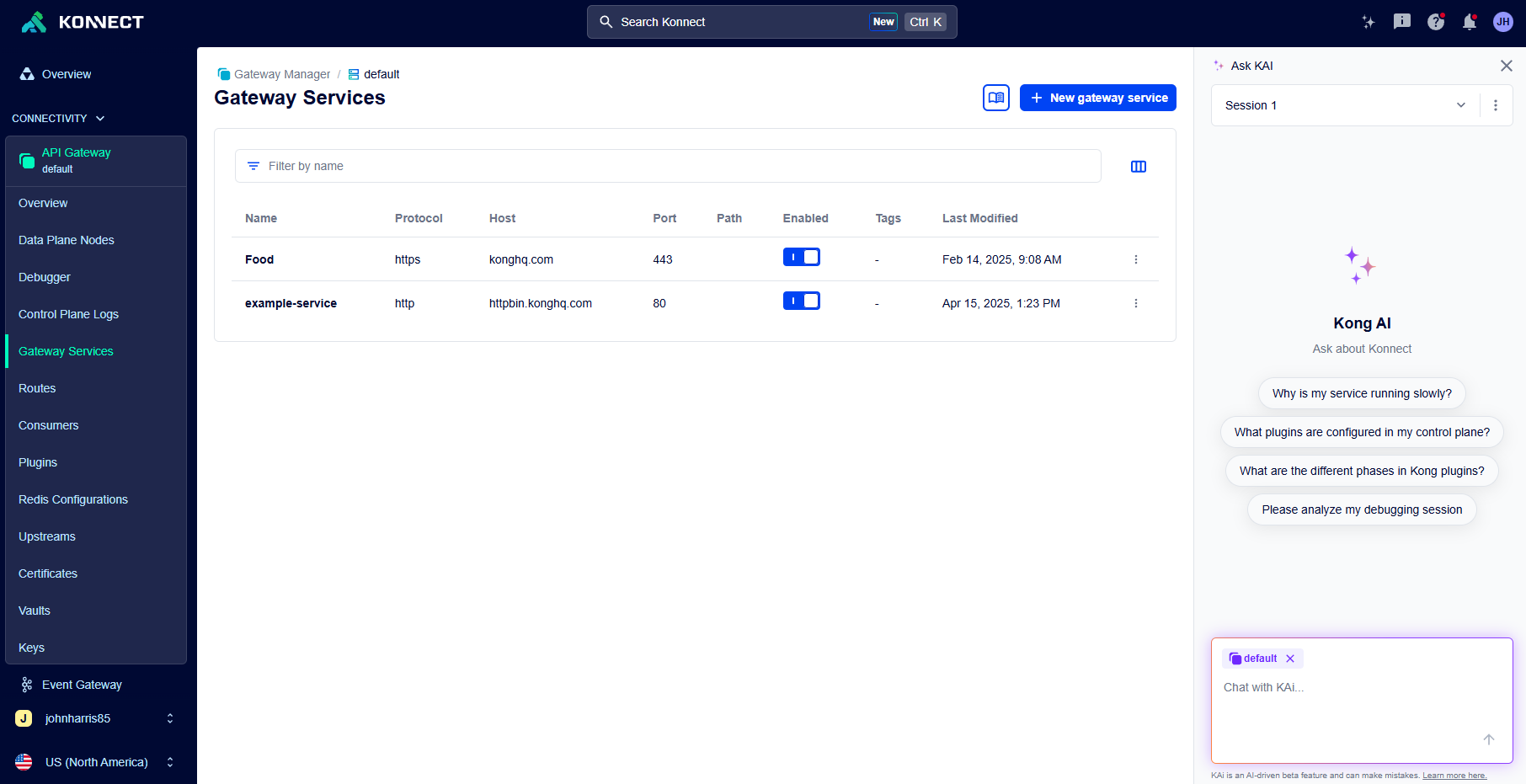
KAi is made up of a series of components running inside Konnect. The agent can perform smart orchestration and analysis of Konnect data and entities. You can interact with the agent in the following ways:
- Use the chat in the Konnect UI by clicking Ask KAi in the top right.
- Click Analyze with KAi on an individual trace in the Debugger to send the trace summary, spans, and logs directly to KAi.
The KAi agent uses backend LLMs for reasoning and natural language tasks. It also uses a Konnect MCP server to provide information about Konnect and the user’s entities and data. Because the MCP server is authenticated via the logged-in user’s session, it only has access to data and resources that the user has permission to access.
KAi also has access to Kong’s documentation and support knowledge base, so it can provide guidance on configuration, architecture, and troubleshooting.
Like other AI chatbots, KAi uses sessions. KAi can remember context within a session, but doesn’t share context between sessions. You can have a maximum of three active sessions with KAi.
flowchart LR
  subgraph backends["Backends & data sources"]
    direction LR
    LLM["LLM backend"]
    MCP["Konnect MCP Server"]
    KB["Kong Docs & support
knowledge base"]
  end

  subgraph kai["KAi Agent"]
    direction LR
    UI["Konnect UI chat"]
  end

  User(("User"))

  User --> kai
  kai --> backends
  click MCP "/konnect-platform/konnect-mcp/"
How to interact with KAi in the UI
To start a chat with KAi, click Ask KAi in the top right of the Konnect UI.
KAi is context-sensitive, so if you navigate to a control plane or Gateway Service, KAi uses that entity as context when answering questions. We recommend adding context, like your control plane, to get the best possible answers from KAi.
The token context limit for a single chat displays in the bottom right of the chat window, below the submit button.
You can create a new session from the Active sessions dropdown menu by selecting “New Chat”. To delete a session, click the action menu icon next to the session and click Delete.
Use the Konnect KodeMode MCP Server with external tools
The same Konnect MCP Server that powers KAi is available for use with external AI assistants and IDE copilots. This lets you interact with your Konnect resources directly from your development environment.
With the MCP server, you can:
- Query, create, modify, and delete Konnect entities and configurations
- Create and analyze debug sessions for performance issues
- Search Kong documentation
- Analyze API traffic
Admins can disable write tools in KAi and restrict users to read-only queries and docs search. Write tool usage is enabled by default to allow the broadest range of use cases, but can be disabled in the Konnect AI Settings page.
Artifacts support
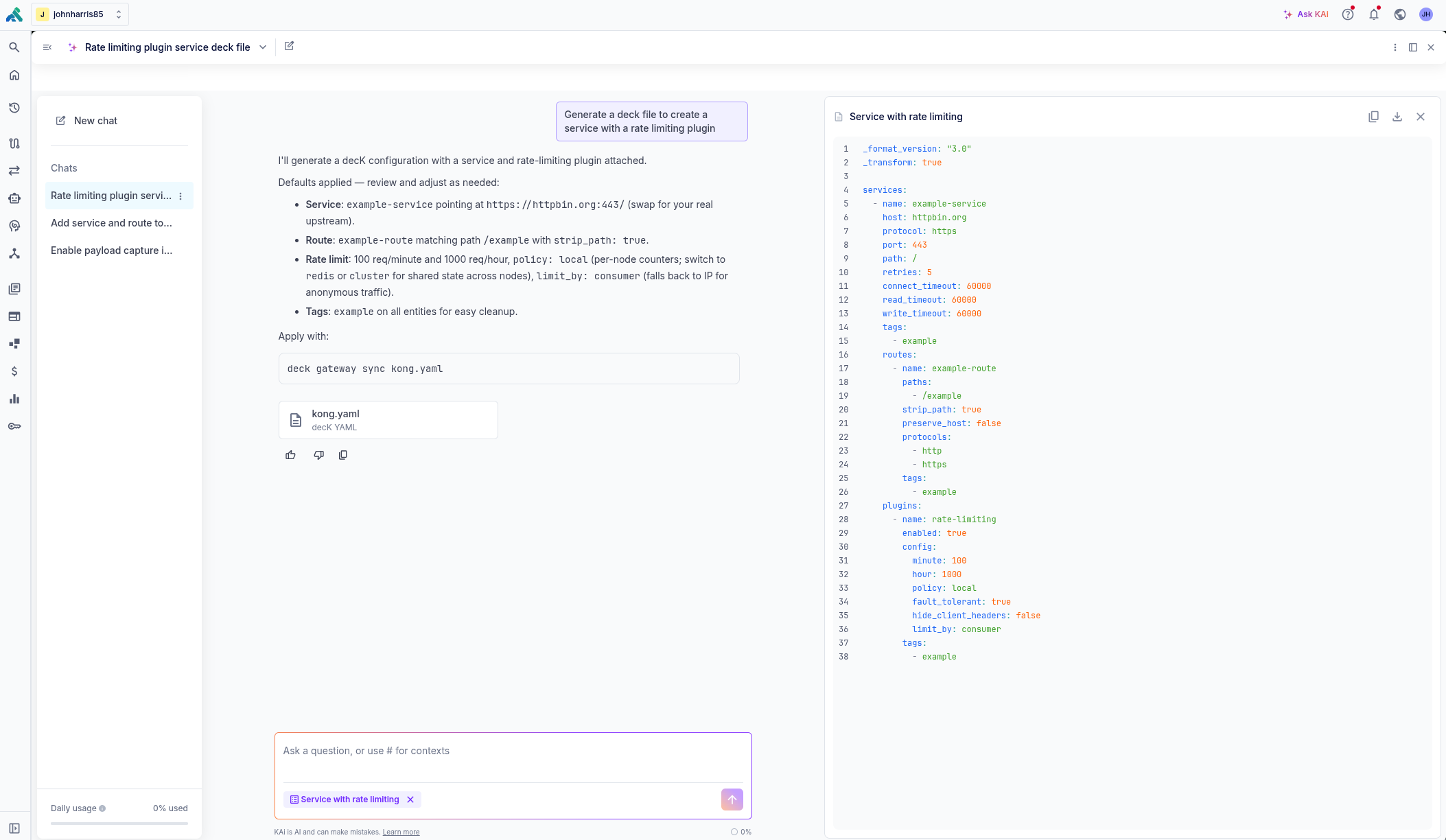
KAi supports generating artifacts like decK and kongctl configuration files, Terraform files, Lua custom plugin code, and more. Ask KAi to generate an artifact, and it will provide the file for download and copying alongside the chat window. For example, you could ask KAi to “Generate a decK file to create a Service with a rate limiting plugin”, and KAi returns a decK file that you can download and apply to your control plane.
Artifacts are associated with a session and can be viewed by clicking the artifact’s name at the top of the artifacts pane. A list of all artifacts in the current session is displayed, and you can click any artifact to view, copy, or download it.
What's new in KAi
KAi v2 Agent released to preview on June 10th, 2026.
New features in this release include:
- Artifacts support
- Full screen mode
- MCP KodeMode integration (full Konnect API support)
- HITL (human-in-the-loop) tool action confirmation
Example prompts
Debugging & performance
- Why is my
/api/checkoutendpoint slow? Create a debugging session, focusing on high-latency requests, and summarize where time is being spent. - Help me diagnose intermittent 502s on my
ROUTE_NAMERoute. - What is the plugin execution order for my
ROUTE_NAMERoute? - Why are Consumers in
CONSUMER_GROUPgetting 401s? Walk me through likely causes and how to verify them in Konnect.
Configuration
- What plugins affect the
ROUTE_NAMERoute? List them in order and explain what each one does. - Build me a decK file showing how to create a Service, Route, and sensible default set of plugins.
- Show me all rate limiting plugins across production control planes.
- List all Routes associated with the
SERVICE_NAMEGateway Service and tell me which auth and security plugins apply to each. - How do I create a new CP with Terraform?
Security & governance checks
- Audit my
CONTROL_PLANEcontrol plane for common security misconfigurations (for example: missing auth, weak TLS, or overly broad CORS). Suggest prioritized fixes. - Check if any Routes in my
CONTROL_PLANEcontrol plane expose endpoints without authentication, and list them. - Suggest a safe baseline policy set for a public API (rate limiting, authentication, and logging) and show how to apply it to the
SERVICE_NAMEGateway Service.
Questions about Konnect
- How do I set up the plugin
PLUGIN_NAMEin Konnect for a particular use case? Give me the exact steps and the limitations. - Explain the difference between a Gateway Service and a Route in Konnect, with an example from my current control plane.
- What’s the recommended way to troubleshoot
upstream timed outerrors in Kong Gateway? - Search the Kong docs for best practices on rate limiting and summarize the key steps for my setup.
Frequently asked questions
Is KAi enabled by default?
That depends on your account type.
-
Plus and trial accounts: KAi is enabled by default for Konnect Plus and trial accounts. Only organization owners can enable or disable KAi for an organization.
-
Enterprise accounts: KAi is always disabled by default for Enterprise accounts. Enterprise accounts can enable it by enabling it in Konnect Labs.
Does KAi automatically modify Konnect configuration when it finds an issue?
No. KAi can make changes to your Konnect configuration but will always ask for your confirmation before applying any changes. You can review the proposed changes and choose whether or not to apply them.
Can all users see the same resources in KAi?
No. Users can only see the Konnect entities in KAi that they have permission for via teams and roles. For example, if a user is a Portal Admin, they can see Dev Portal entities, but asking KAi about control planes will only return generic answers based on the docs. They won’t get any information or suggestions related to real control planes, and won’t be able to interact with them.
Is there an additional cost to using KAi?
Access to KAi is included in your existing Plus and Trial plans. Enterprise users should contact their Kong account manager or enable it in Konnect Labs.
Does KAi train on any of my data?
No. Neither Kong nor any downstream LLMs that KAi uses train on user data.
Which models does KAi use?
We currently use Anthropic Claude, Z.ai GLM, and Alibaba Qwen models, all provided by AWS Bedrock. Review the terms for models on the AWS Third-Party Models page.
What regions is KAi available in?
KAi is currently available in US, EU, AU, and IN. Other regions will be added over time.
Where can I find my limits and quotas?
Individual chat context information can be found in the bottom right of the chat window, below the submit button. Daily user limits can be found at the bottom of the Active Sessions list. Quotas reset at 5pm each day. A warning will appear in the chat window when you’re approaching your daily limits.