Kong Konnect MCP Server
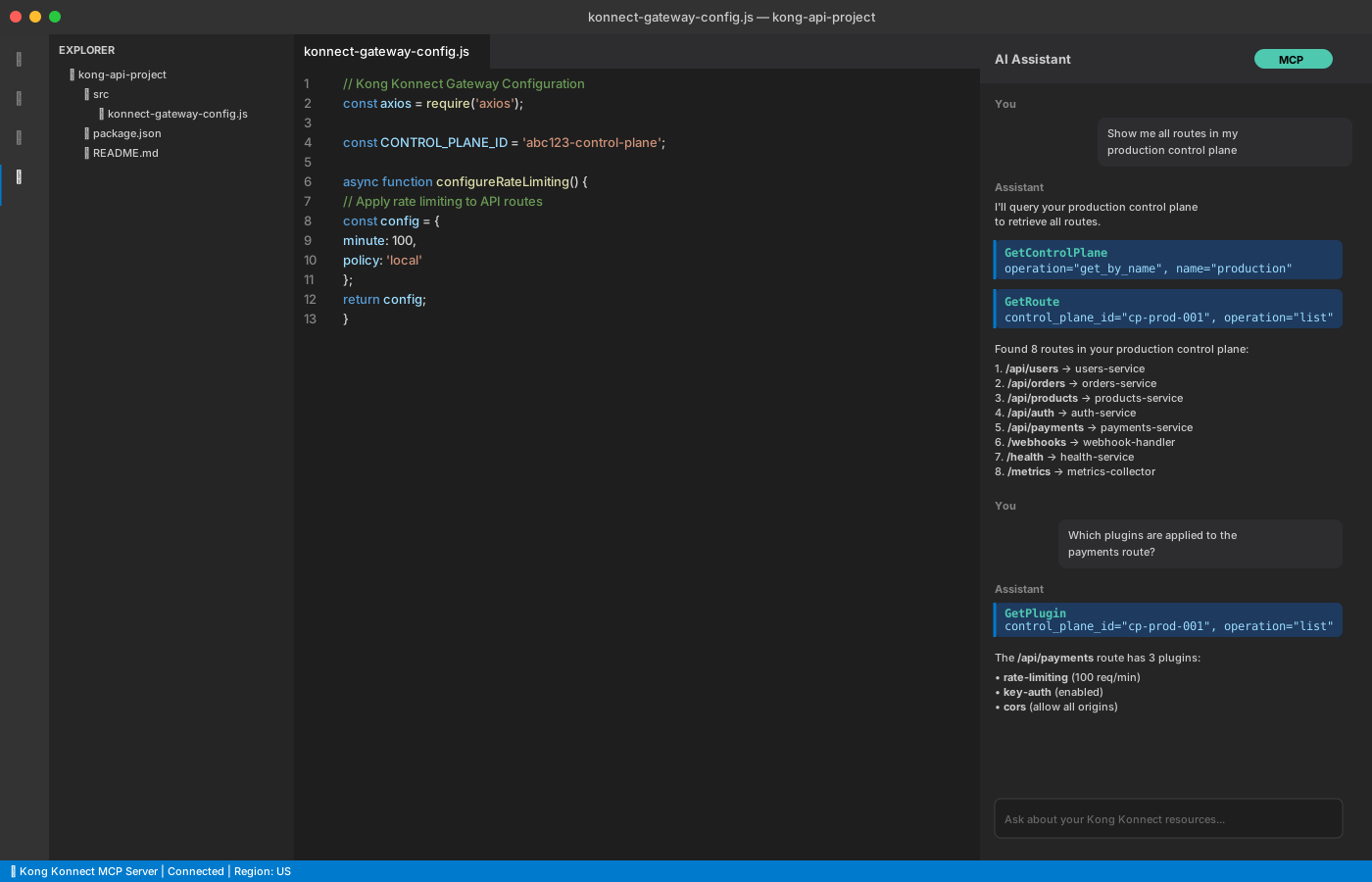
The Kong Konnect MCP Server enables developers to manage API infrastructure and debug performance issues directly from their development environment. You can also plug in Kong Konnect MCP Server to your AI agents to automate tasks like configuration management and performance troubleshooting.
The same tools available in Kong Konnect MCP Server power KAi (Kong’s AI assistant), an in-product AI assistant for Kong Konnect.
Use cases
The Kong Konnect MCP Server enables many workflows for managing and debugging your API infrastructure:
- Kong Konnect entity management: Query control planes, services, routes, consumers, consumer groups, plugins, and vaults.
- API debugging: Create debug sessions with active tracing to investigate performance issues and identify bottlenecks.
- Analytics and monitoring: Query API request data with filters for time range, status codes, consumers, services, and routes.
- Kong documentation search: Search Kong’s documentation for configuration guidance and troubleshooting steps.
When should I use an MCP Server?
Use the Kong Konnect MCP Server when:
- You want to manage Konnect resources from your IDE or terminal
- You need to debug API performance issues with active tracing
- You prefer working with AI assistants for infrastructure tasks
- You need to query analytics and traffic patterns programmatically
How the Kong Konnect MCP Server works
Kong Konnect MCP Server provides programmatic access to your Konnect resources through the Model Context Protocol. The server exposes specialized tools that AI assistants can use to query Kong Gateway entities, analyze traffic, debug performance issues, and search documentation.
You can connect to the MCP server from:
- IDEs with MCP client support (VS Code, Cursor, IntelliJ)
- AI assistants like Claude and GitHub Copilot
- Claude Code CLI for terminal-based workflows
- Any MCP-compatible client application
The server connects to Konnect backend services to retrieve Kong Gateway configuration, analytics data, active tracing sessions, and Kong’s documentation. This allows AI assistants to provide contextual assistance for debugging, configuration, and operational tasks.

Authentication and access
The Kong Konnect MCP Server uses token-based authentication to ensure secure access to your Konnect resources. You can authenticate using either a Personal Access Token (PAT) or a Service Accout Access Token, depending on your use case.Personal Access Token
The MCP server can authenticate using your Personal Access Token (PAT), which means it only accesses resources you have permission to view. Create a token by opening the Kong Konnect tokens page and selecting Generate Token. All queries respect your organization’s role-based access controls and regional data boundaries.
System Account Access Token
For automated workflows, you can also use a System Account Access Token. SPATs are tied to specific service accounts with defined permissions, allowing secure machine-to-machine authentication without user intervention.
Regional server endpoints
The MCP server is deployed regionally. Connect to the server in the same region where your Konnect resources are deployed.
|
Region |
Server URL |
|---|---|
| United States (US) |
https://us.mcp.konghq.com/
|
| Europe (EU) |
https://eu.mcp.konghq.com/
|
| Australia (AU) |
https://au.mcp.konghq.com/
|
| India (IN) |
https://in.mcp.konghq.com/
|
Default endpoint
The regional endpoint defaults to US region.
Organizations using multiple Kong Konnect regions require separate MCP server connections for each region. Resources cannot be accessed across regions from a single connection.
Organization settings
Kong Konnect MCP Server access is enabled by default. Organization administrators can disable it from the Organization Settings.
Installation
Configure the MCP client of your choice by adding the Kong Konnect MCP Server with your regional URL and PAT. Select your preferred client below for specific installation instructions.

Claude Code CLI
Configure MCP server using the claude mcp add command or by editing ~/.claude.json

Visual Studio Code
Add MCP server configuration through VS Code’s Command Palette and MCP settings


GitHub Copilot - VS Code
Set up MCP server for GitHub Copilot extension in Visual Studio Code
GitHub Copilot - JetBrains
Configure MCP server for IntelliJ IDEA, PyCharm, WebStorm, and other JetBrains IDEs

Available tools
The Kong Konnect MCP Server exposes a full suite of tools covering the entire GA Kong Konnect product. It provides three core tools that work together to let your AI assistant discover, understand, and interact with Kong Konnect APIs:
-
search— finds relevant API operations based on a description of what you want to do (e.g."list all services in a control plane"). -
get_schema— retrieves the full/partial (as required) schema for a specific operation, so the AI knows exactly what parameters and request body fields are required. -
execute— calls the API operation with the appropriate inputs, based on whatget_schemareturned.
Rather than calling a fixed set of individual tools, your AI assistant uses this discover-then-execute pattern to perform complex, multi-step tasks across Kong Konnect. This means the AI reasons over the available operations at runtime and constructs the correct API calls, rather than relying on hardcoded tool definitions for every action.
Usage with skills and plugins
The Kong Konnect MCP Server can be installed and used via Plugins and Skills for many existing tools. All the plugins and skills listed on the Kong Skills Hub are MCP-aware and when installed can use the MCP server to accomplish many tasks more effectively across many Kong Konnect products.
What's new in Kong Konnect MCP Server
The following are the latest changes in Kong Konnect MCP Server:
-
Standalone MCP Code Mode released GA (May 18, 2026)
-
Public Beta release (December 19, 2025)
For a complete changelog of all Kong Konnect MCP Server releases, see the Kong Konnect MCP Server changelog.
Frequently asked questions
Can I disable MCP access for my organization?
MCP server access is enabled by default for all organizations. Organization admins can disable this from AI Settings, after which no user will be able to access the MCP server.
Is any of my data sent to an LLM provider when using the MCP server?
If you have KAi enabled, an additional KnowledgeBase tool will be available via the MCP server. This tool creates embeddings from your query and uses a re-ranking model to improve documentation search results. These models are both hosted on AWS Bedrock and no training is performed on your data.
How does user access control work for MCP tools?
Access to MCP tools is based on the permission levels of the user whose PAT / SPAT is used for authentication.
I’m experiencing authentication errors. What should I check?
Verify PAT / SPAT validity, check your organization hasn’t disabled MCP access, and ensure the token has required permissions.
I can’t connect to the MCP server. What should I do?
Check your internet connection, verify the regional server URL is correct, and ensure your firewall isn’t blocking mcp.konghq.com.
Tool execution is failing. How do I troubleshoot?
Check parameter correctness, verify you have resource access permissions, wait if you’re rate limited, and confirm the resource exists.